Introduction
This guide shows you exactly how to use the Red Paper Chrome extension: how to install it, sign in, check a document and download the results. It takes about two minutes to set up, and after that every check is a few clicks from your toolbar.
If you want to know what the extension does and who it is for first, read our overview of the Red Paper Chrome extension. This page sticks to the how-to.
Watch: The Extension in 70 Seconds
Prefer to read? All the steps are written out below.
Before You Start
- Google Chrome on a computer (Windows, macOS, Linux or ChromeOS).
- A Red Paper account. If you do not have one, sign up on checkplagiarism.ai. The extension uses the same account and the same credits as the website.
- Your document as a PDF, DOCX, DOC, RTF or TXT file.
- Credits for the scan: 1 credit per 250 words, with a minimum of 4 credits per document. You can buy credits here, and the extension shows the exact cost before it charges anything.
Step 1: Install and Pin the Extension
- Open the Red Paper listing on the Chrome Web Store.
- Click Add to Chrome, then Add extension in the confirmation box.
- Click the puzzle-piece icon at the right of the Chrome toolbar and click the pin next to Red Paper. The red Red Paper icon now stays in your toolbar.
Step 2: Sign In
Click the Red Paper icon in the toolbar to open the popup.
- Already signed in on checkplagiarism.ai? The extension picks up that session and signs you in on its own. There is nothing to type.
- Not signed in? Enter your Email and Password and click Sign in.
- Signed up with Google? Click Sign in on the website instead, sign in there, then open the popup again.
Once you are in, the popup shows two tabs: Check a document and Reports.
Step 3: Choose Your Document
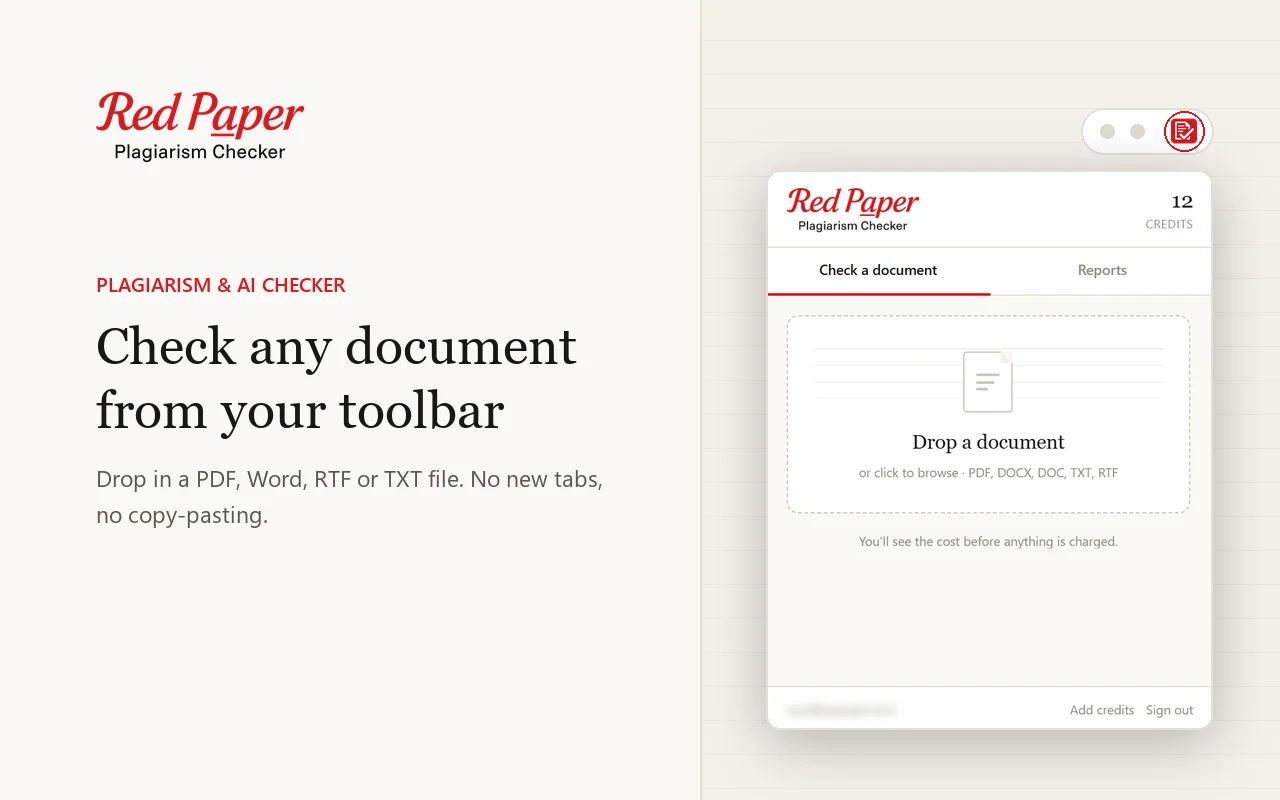
On the Check a document tab, either drag your file onto the Drop a document area or click it to browse your computer. The extension accepts PDF, DOCX, DOC, RTF and TXT files.
The extension reads the file and, within a few seconds, shows a summary before anything is charged:
| Field | What it tells you |
|---|---|
| Words | How many words were found in your document |
| Language | The document language. It says (detected) when it was identified automatically |
| Cost | The number of credits this scan will use |
| Your balance | The credits currently in your account |
Picked the wrong file? Click Choose a different file and start this step again.
Step 4: Check the Cost and Start
If your balance covers the cost, click Check now. The credits are used and the scan starts.
If you do not have enough credits, the button reads Add N credits instead, showing how many you are short. Clicking it opens the pricing page on checkplagiarism.ai in a new tab. Your file stays in the popup, so after buying credits you can open the extension again and click Check now. The extension itself never takes payments.
Step 5: Track the Scan
After you start, the popup switches to the Reports tab, where your document appears with a Checking badge. Most scans finish in a few minutes.
You do not have to wait with the popup open. Close it and carry on working: the extension keeps checking in the background and Chrome shows a desktop notification as soon as the report is ready.
Step 6: Download Your Reports
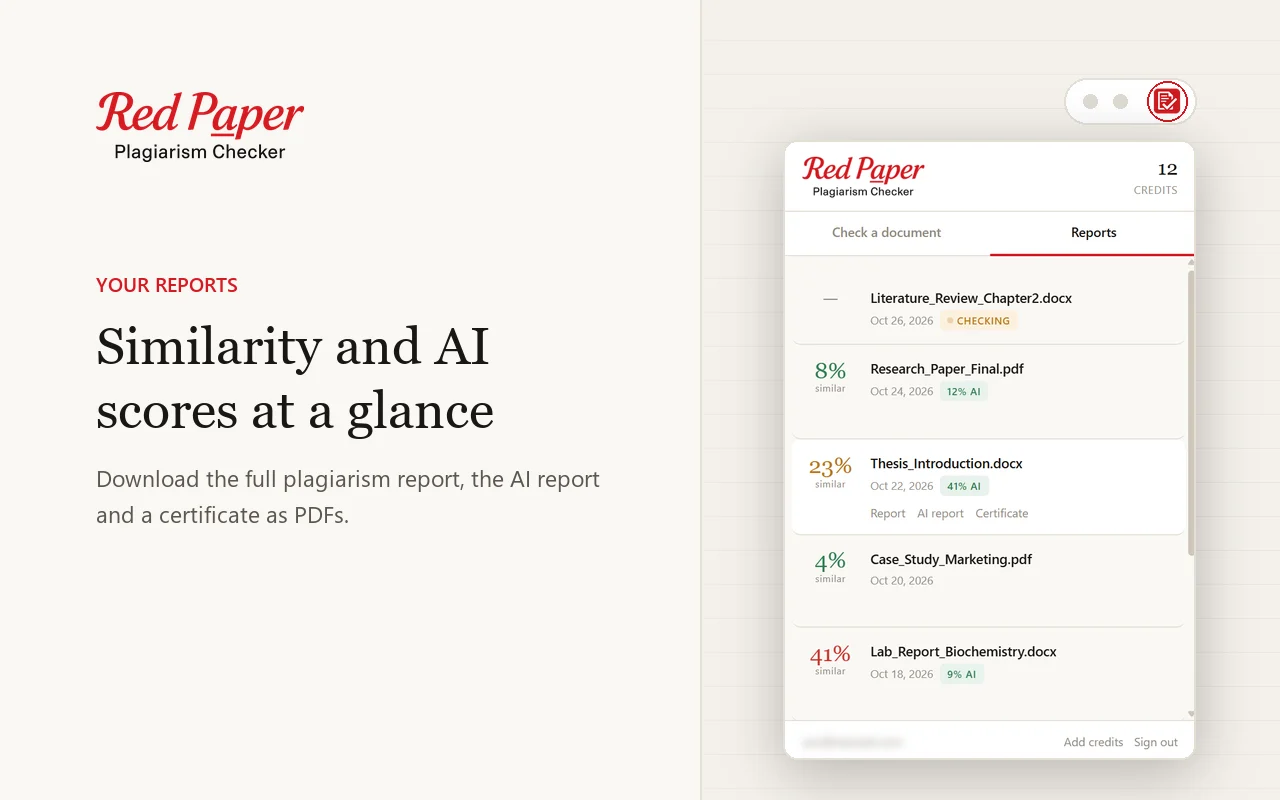
Open the popup and go to the Reports tab. Each finished scan shows its similarity score and AI score, with three download links:
- Report saves the plagiarism (similarity) report: the overall score, the matched sources and every matching passage highlighted. Our guide on reading a similarity report explains each part.
- AI report saves the AI-content report with the flagged passages highlighted. It can appear a few minutes after the plagiarism report.
- Certificate saves the certificate of originality, with both scores and a QR code anyone can scan to verify it.
The files are saved to your normal Chrome downloads folder. The Reports tab lists your recent scans; click See all reports on the website to open the full list under My Reports.
Tips and Troubleshooting
| Situation | What to do |
|---|---|
| You want to check a Google Doc | In Google Docs choose File, Download, PDF or Microsoft Word (.docx), then drop the downloaded file into the popup |
| The Red Paper icon is missing from the toolbar | Open the puzzle-piece menu and pin Red Paper again |
| Sign-in does not work | Check your email and password, or click Sign in on the website instead and open the popup again |
| The popup says the file is over the 100 MB limit | Compress the PDF or split the document, then try again |
| The popup says the file type is not supported | Save the document as PDF, DOCX, DOC, RTF or TXT |
| Chrome says the extension is not trusted by Enhanced Safe Browsing | Chrome shows this for developers who are new to the Web Store. It is not a security finding and is removed automatically over time |
| You are on a shared computer | Click Sign out at the bottom of the popup when you are done |
Frequently Asked Questions
How do I start using the Red Paper Chrome extension?
Install it from the Chrome Web Store, pin it, click the icon and sign in. Then drop a PDF or Word file into the popup and click Check now.
Which files can I check with the extension?
PDF, DOCX, DOC, RTF and TXT. For a Google Doc, download it as a PDF or Word file first.
Do I have to keep the popup open while the scan runs?
No. Close it after clicking Check now; you will get a desktop notification when the report is ready.
What happens if I do not have enough credits?
The popup shows an Add credits button that opens the pricing page. Your document waits in the popup until you start the scan.
Where can I find scans I started from the extension?
In the Reports tab of the popup, and under My Reports on checkplagiarism.ai.
How do I sign out of the extension?
Click Sign out at the bottom of the popup. This also clears the scans the extension had stored on your computer.
Conclusion
That is the whole workflow: install and pin once, sign in once, and from then on every check is drop a file, confirm the cost, click Check now and download the reports when the notification arrives.
Add Red Paper to Chrome
Free to install. Scans use your Red Paper credits.
Get the Chrome Extension →