Introduction
This guide shows you exactly how to use the Red Paper plugin in ChatGPT: how to add it, connect your account, check a document and open the results. Setup takes about two minutes, and after that you can check any file you are working on in ChatGPT by attaching it and asking.
If you want to know what the plugin does and why ChatGPT cannot check plagiarism on its own, read our overview of the Red Paper ChatGPT plugin. This page sticks to the how-to.
Watch: Red Paper in ChatGPT
Prefer to read? All the steps are written out below.
Before You Start
- A ChatGPT account on the web, desktop or mobile app.
- A Red Paper account. If you do not have one, sign up on checkplagiarism.ai. The plugin uses the same account and the same credits as the website.
- Your document as a PDF, DOCX, DOC, TXT or RTF file with at least 50 readable words.
- Credits for the scan: 1 credit per 250 words, with a minimum of 4 credits per document. Credits are bought on the checkplagiarism.ai website; the plugin has no payment step.
Step 1: Add Red Paper to ChatGPT
- Open Red Paper in the ChatGPT plugin directory.
- Or, in ChatGPT, open the plugin directory from the sidebar, search for Red Paper and select RED PAPER Plagiarism Checker.
Step 2: Connect Your Account
- Click Connect. A Red Paper sign-in page opens.
- Sign in with your checkplagiarism.ai email and password, or with Google if that is how you signed up.
- The consent page shows what ChatGPT will be allowed to do: read your reports and submit documents for checking. Click Allow.
- You are taken back to ChatGPT, and Red Paper shows as connected.
To make sure the right account is linked, ask: "Which Red Paper account is connected and how many credits do I have?" Red Paper replies with the account email and your current balance.
Step 3: Attach Your Document
Start a new chat and choose Red Paper, either by typing @Red Paper in the message box or by picking it from the tools menu. Then attach your file with the + (attach) button. The plugin accepts PDF, DOCX, DOC, TXT and RTF files up to 50 MB.
Step 4: Ask Red Paper to Check It
Type a request in plain words and send it with the file, for example:
"Check this document for plagiarism and AI-written text."
Red Paper first checks that your balance covers the document, then uploads it and starts the scan. The document language is detected automatically; if you want to set it yourself, add it to the request, such as "The document is in Hindi."
Step 5: Follow the Result Card
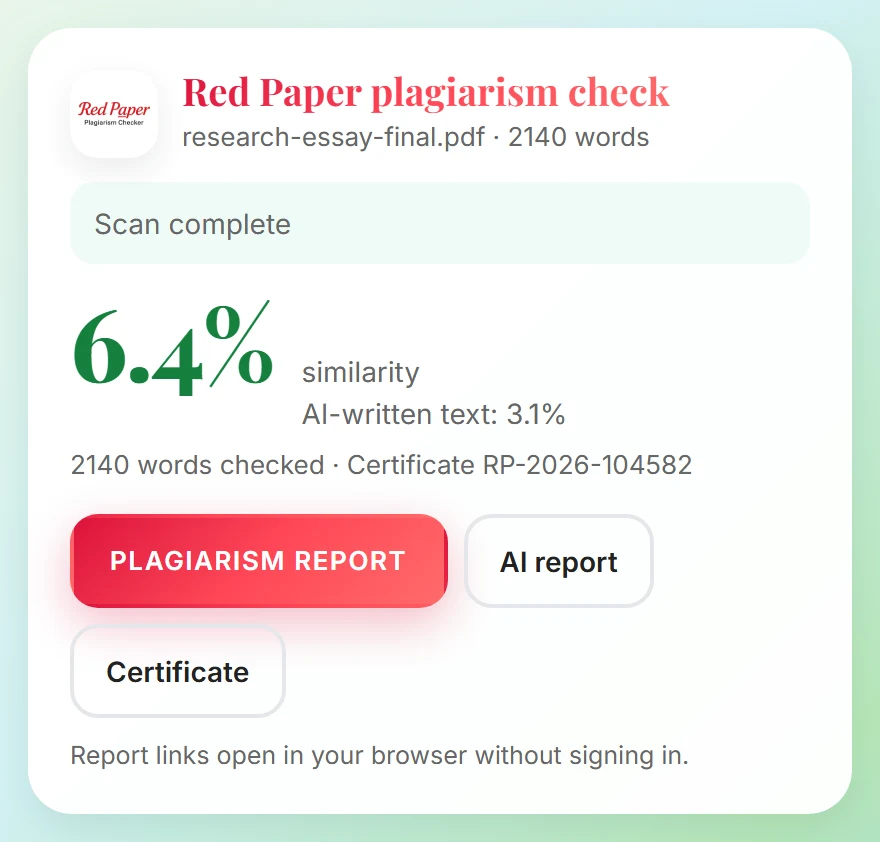
The Red Paper result card in ChatGPT (example data).
A Red Paper card appears in the chat. It shows the progress of the scan and refreshes on its own, so there is no need to ask "is it done yet?". Most scans finish in 1 to 5 minutes. When the card says Scan complete, it shows the similarity score and the AI-written text score.
Step 6: Open Your Reports
The finished card has a button for each result:
- Report opens the plagiarism (similarity) report: the overall score, the matched sources and every matching passage highlighted. Our guide on reading a similarity report explains each part.
- AI report opens the AI-content report with the flagged passages highlighted. It can arrive a few minutes after the plagiarism report; the card shows AI report on its way and adds the button by itself.
- Certificate opens the certificate of originality, with both scores and a QR code anyone can scan to verify it.
The links open in your browser without signing in for a limited time, so download the PDFs you want to keep. Every scan is also saved under My Reports on the website.
Checking Several Files at Once
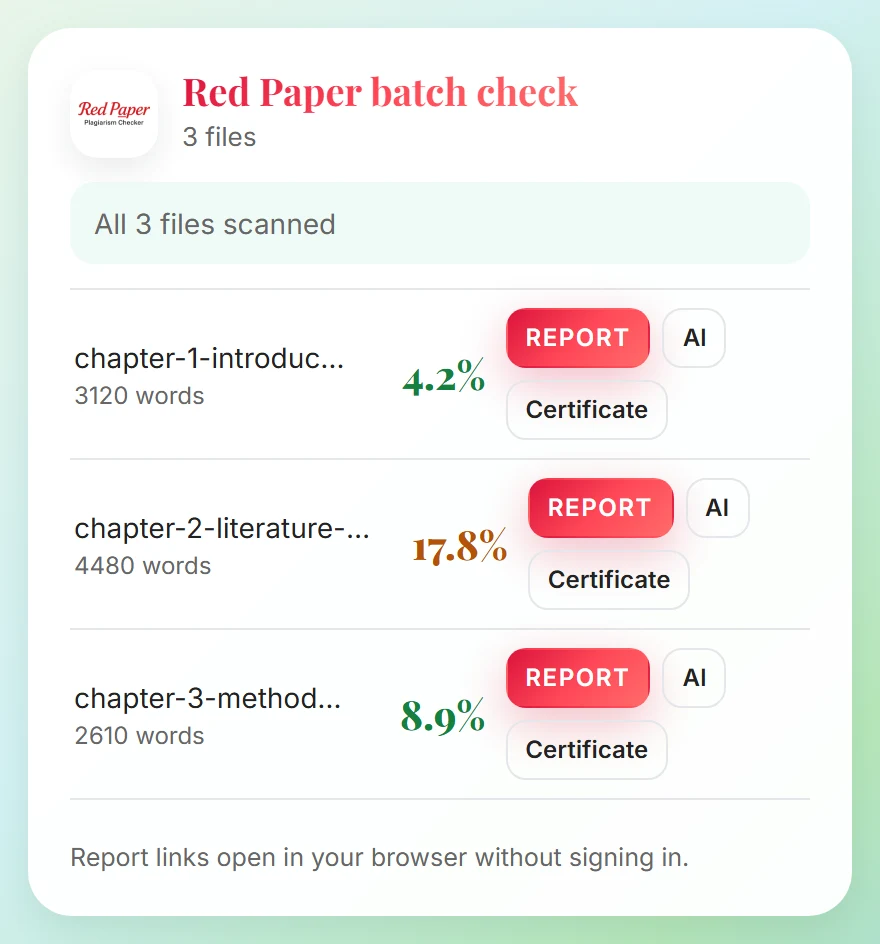
A batch check of three files (example data).
To check chapters of a thesis or a set of assignments together, attach 2 to 10 files in one message and ask "Check these documents together." The card then shows one row per file, each with its own score and Report, AI report and Certificate buttons.
Prompts You Can Copy
| What you want | What to type |
|---|---|
| Check one file | "Check this document for plagiarism and AI-written text." |
| Check several files | "Check these documents together." |
| Get the AI report | "Give me the AI report for that scan." |
| Get the certificate | "Send me the originality certificate." |
| See past scans | "Show my recent Red Paper reports." |
| Check your balance | "How many Red Paper credits do I have?" |
Tips and Troubleshooting
| Situation | What to do |
|---|---|
| Your text is in the chat, not in a file | Save it as a TXT, DOCX or PDF file and attach it. The plugin does not check pasted text |
| You want to check a Google Doc | In Google Docs choose File, Download, PDF or Microsoft Word (.docx), then attach the downloaded file |
| Red Paper says you do not have enough credits | Nothing was uploaded or charged. Add credits on checkplagiarism.ai and ask again |
| The file cannot be read | Scanned images and photos of text cannot be checked. Use a document with selectable text and at least 50 words |
| The wrong account is connected | Disconnect Red Paper in ChatGPT, then connect again and sign in with the right account |
| A report link has expired | Open the report from My Reports on checkplagiarism.ai |
Frequently Asked Questions
How do I start using Red Paper in ChatGPT?
Add RED PAPER Plagiarism Checker from the plugin directory, click Connect and sign in. Then attach a file in a chat with Red Paper and ask it to check the document.
Can I paste text instead of attaching a file?
No. Save the text as a TXT, DOCX or PDF file and attach it.
Do I need to keep asking whether the scan is finished?
No. The Red Paper card refreshes on its own and shows the report buttons when the results are ready.
What happens if I do not have enough credits?
Your balance is checked before anything is uploaded, so nothing is charged. Add credits on the website and ask again.
Where do I find my reports later?
Ask "Show my recent Red Paper reports" in ChatGPT, or open My Reports on checkplagiarism.ai.
How do I disconnect Red Paper from ChatGPT?
Remove the plugin in ChatGPT, or open My Reports on checkplagiarism.ai, go to Settings and disconnect ChatGPT under Connected apps.
Conclusion
That is the whole workflow: add and connect Red Paper once, and from then on every check is attach a file, ask, and open the reports from the card when it says Scan complete.