Introduction
This guide shows you exactly how to use the Red Paper Android app: how to install it, sign in, check a document and open the results. It takes about two minutes to set up, and after that every check is a few taps on your phone.
If you want to know what the app does and who it is for first, read our overview of the Red Paper Android app. This page sticks to the how-to.
Before You Start
- An Android phone with the Google Play Store.
- A Red Paper account. You can create one in the app, or sign up on checkplagiarism.ai. The app uses the same account and the same credits as the website.
- Your document as a PDF, DOCX, DOC, TXT or RTF file, saved on the phone or in Google Drive.
- Credits for the scan: 1 credit per 250 words, with a minimum of 4 credits per document. Credits are added on the website, and the app shows the exact cost before it charges anything.
Step 1: Install the App
- Open Red Paper Plagiarism Checker on Google Play. You can also open the Play Store and search for Red Paper Plagiarism Checker.
- Tap Install and wait for the download to finish.
- Tap Open. On your home screen the app is called Red Paper.
Step 2: Sign In or Create an Account
- Already have an account? Enter your Email and Password and tap Sign in.
- Signed up with Google? Tap Continue with Google and pick your Google account.
- New to Red Paper? Tap Create an account and fill in your name, email, country, mobile number, address and a password, or tap Sign up with Google.
- Forgot your password? Tap Forgot password? on the sign-in screen to reset it by email.
When the app asks for permission to send notifications, tap Allow. That is how you find out a scan has finished without keeping the app open.
You land on the Home screen, which shows your credit balance and recent reports. The bar at the bottom has four tabs: Home, Scan, Reports and Account.
Step 3: Choose Your Documents
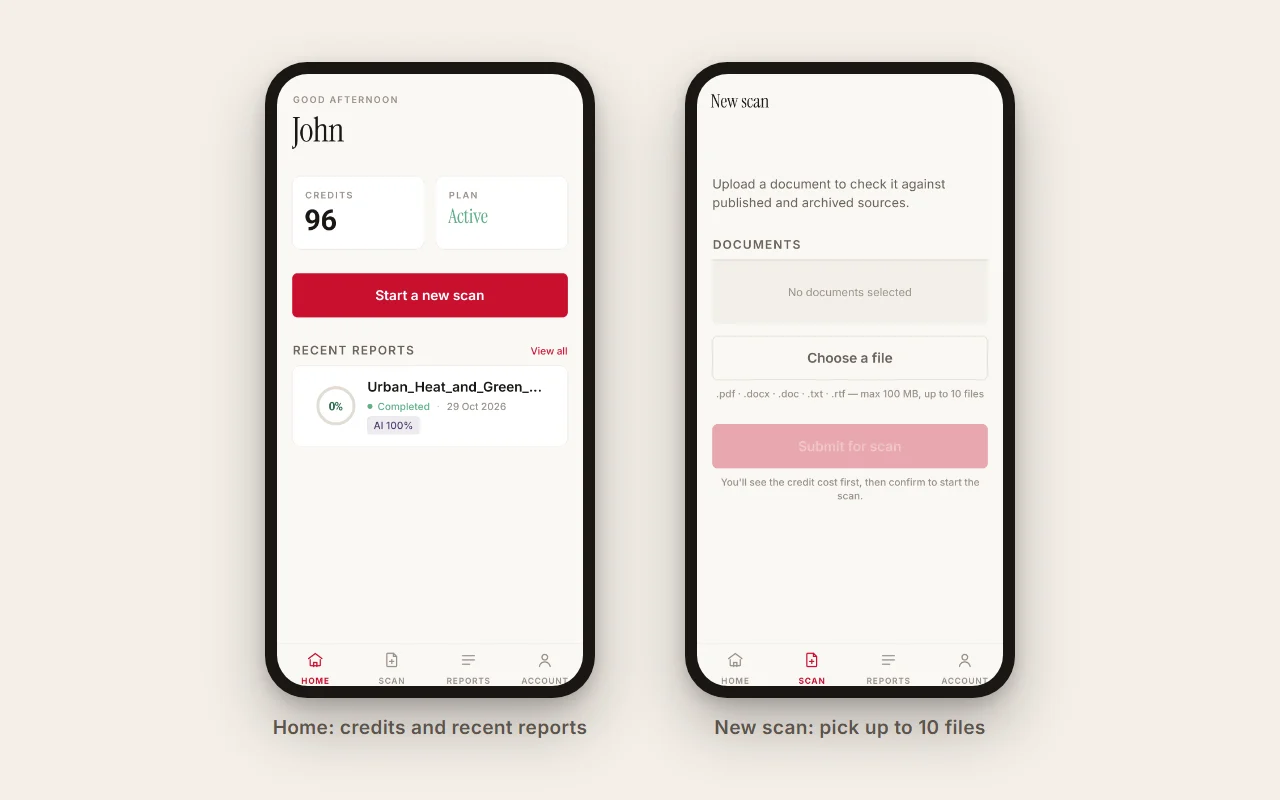
Tap Scan in the bottom bar (or Start a new scan on the Home screen), then tap Choose a file. Android's file picker opens, where you can pick from Downloads, other folders or Google Drive.
- File types: PDF, DOCX, DOC, TXT and RTF, up to 100 MB each.
- Several files: select more than one in the picker, or tap Add more files afterwards. One batch holds up to 10 files.
- Language: under each file the app shows Detecting language… and then the result, such as English · auto-detected. If it is wrong, tap Change and search the list of 196 languages.
- Wrong file? Tap Remove next to it.
The app skips a file it cannot check, or one that is already in the batch, and tells you why.
Step 4: Check the Cost and Start
Tap Submit for scan (or Submit N files for a batch). The app counts the words and shows the cost before anything is charged:
| Field | What it tells you |
|---|---|
| Credits required | The number of credits this scan will use |
| Words | How many words were found in your document |
| Language | The language the document will be checked in |
| Your balance | The credits in your account, in green if they cover the scan and red if they do not |
If your balance covers the cost, tap Start scan — N credits (or Start batch). The credits are used and the scan begins.
If you do not have enough credits, the app tells you how many more you need instead. Add them by signing in at checkplagiarism.ai, then submit the file again in the app. The app itself never takes payments.
Step 5: Track the Scan
The scan screen shows four steps, Upload, Cost, Scan and Report, filling in as each one completes. Most scans finish in a few minutes.
You do not have to wait on this screen. Leave the app or lock your phone: a notification arrives as soon as the report is ready, and tapping it opens the result. Scans still running are listed under the Processing filter in the Reports tab.
Step 6: Open and Share Your Reports
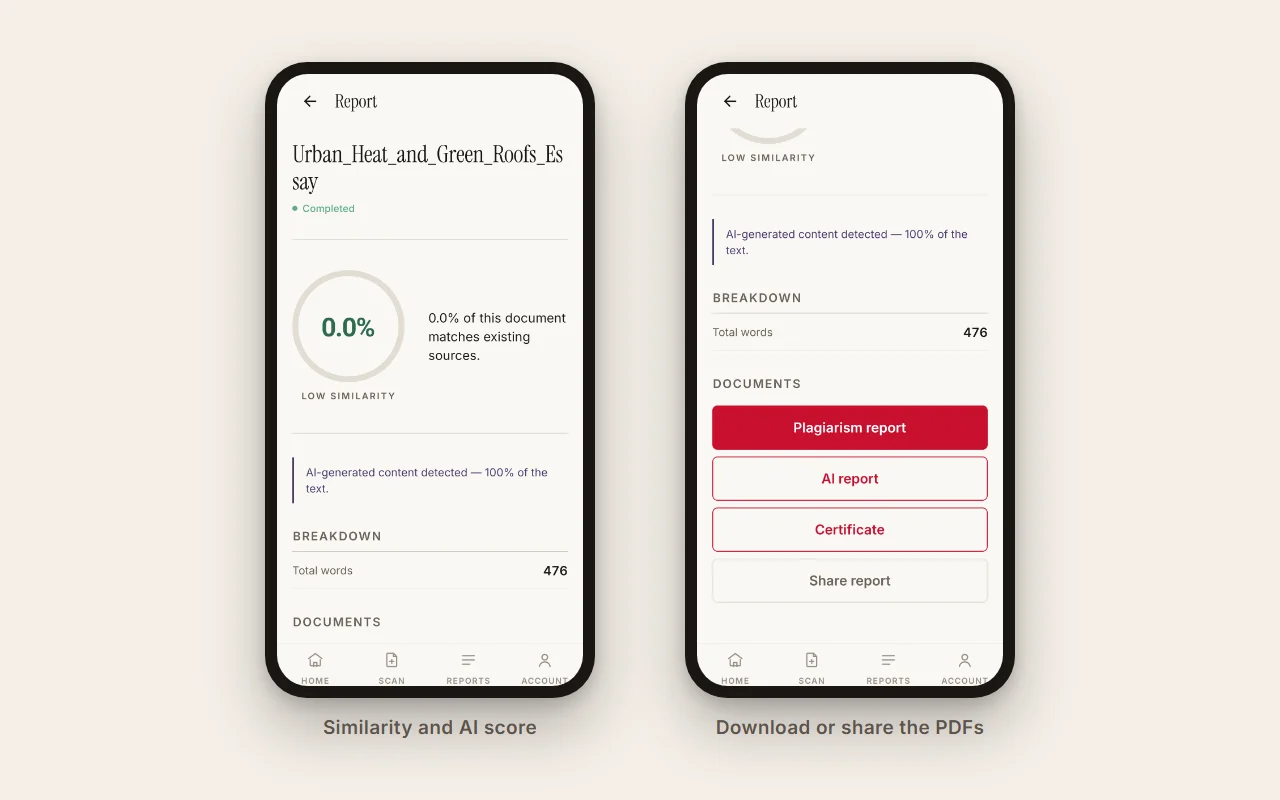
Open the finished report from the notification, the Home screen or the Reports tab. At the top you see the similarity score with a rating such as Low similarity, the AI content percentage and the total word count. Under Documents there are four buttons:
- Plagiarism report opens the similarity report: the overall score, the matched sources and every matching passage highlighted. Our guide on reading a similarity report explains each part.
- AI report opens the AI-content report with the flagged passages highlighted. It can appear a few minutes after the plagiarism report.
- Certificate opens the certificate of originality, with both scores and a QR code anyone can scan to verify it.
- Share report opens Android's share sheet, so you can save the report to Google Drive or send it by email or WhatsApp.
The Reports tab lists all your scans, including the ones you ran on the website. Search by filename or filter by Completed, Processing or Failed. Reports you have opened stay on the phone, so they still load without a connection.
Tips and Troubleshooting
| Situation | What to do |
|---|---|
| You want to check a Google Doc | In the Google Docs app choose Share & export, Save as, PDF or Word (.docx), then pick the saved file in Red Paper |
| No notification when the scan finished | Check that notifications are on under Account → Notifications and allowed for Red Paper in your phone's settings |
| The app skips a file as too large | Files over 100 MB are not accepted. Compress the PDF or split the document |
| The app skips a file as unsupported | Save the document as PDF, DOCX, DOC, TXT or RTF |
| The detected language is wrong | Tap Change under the file before you submit it and pick the right language |
| A report says it is taking longer than expected | Use Account → Contact us and include the filename and date |
| A scan failed | Any credits held for it are refunded automatically. Try the file again, or save it as PDF first |
| The screen is too bright at night | Choose dark mode under Account → Appearance |
| You are on a shared phone | Tap Logout at the bottom of the Account tab when you are done |
Frequently Asked Questions
How do I start using the Red Paper Android app?
Install it from Google Play, open it and sign in. Then tap Scan, choose a PDF or Word file and tap Submit for scan.
Which files can I check with the app?
PDF, DOCX, DOC, TXT and RTF files up to 100 MB each, and up to 10 files in one batch.
Do I have to keep the app open while the scan runs?
No. Leave the app once the scan starts; you will get a notification when the report is ready.
What happens if I do not have enough credits?
The cost screen tells you how many credits you are short. Add them on checkplagiarism.ai, then submit the file again in the app.
Where do the PDFs go when I tap a report button?
They open in your phone's PDF viewer. Tap Share report to save a copy to Drive or send it to someone.
How do I sign out of the app?
Open the Account tab and tap Logout. This also removes the reports the app had saved on your phone.
Conclusion
That is the whole workflow: install and sign in once, and from then on every check is choose a file, confirm the cost, tap Start scan and open the reports when the notification arrives.
Get Red Paper on Google Play
Free to download. Scans use your Red Paper credits.
Get the Android App →