Introduction
This guide shows you how to use the Red Paper connector in Claude: how to add it, connect your account, check your writing for plagiarism and AI-written text, and open the results. Setup takes about two minutes. After that, you can ask Claude to check any text you are working on.
Before You Start
- A Claude account on claude.ai, the Claude desktop app or the mobile app. A connector added on the web or desktop also works on mobile.
- A Red Paper account. If you do not have one, sign up on checkplagiarism.ai. The connector uses the same account and the same credits as the website.
- Your text, pasted into the chat or in a document you share with Claude, with at least 50 words.
- Credits for the check: 1 credit per 250 words, with a minimum of 4 credits per document. Credits are managed in your account on the checkplagiarism.ai website; the connector has no payment step.
Step 1: Add Red Paper to Claude
- In Claude, open Customize and then Connectors.
- Search the connectors directory for Red Paper and select it.
- If Red Paper is not listed for you yet, choose Add custom
connector, enter the name Red Paper and this URL:
https://www.checkplagiarism.ai/mcp/claude, then click Add.
On a Claude Team or Enterprise plan, an organization Owner adds the connector once, and each member then connects with their own Red Paper account.
Step 2: Connect Your Account
- Click Connect. A Red Paper sign-in page opens.
- Sign in with your checkplagiarism.ai email and password, or with Google if that is how you signed up.
- The consent page shows what Claude will be allowed to do: read your reports and submit text for checking with your existing credits. It can never buy credits, change your password or see payment details. Click Allow access.
- You are taken back to Claude, and Red Paper shows as connected.
To make sure the right account is linked, ask: "Which Red Paper account is connected and how many credits do I have?"
Step 3: Give Claude Your Text
Start a new chat. Paste the text you want to check, or share your document, and send a request in plain words, for example:
"Check this for plagiarism and AI-written text."
Because a check uses your credits, Claude asks you to approve it first. Red Paper then checks that your balance covers the text and starts the scan. The language is detected automatically; to set it yourself, add it to the request, such as "The text is in Hindi."
When you share a PDF or Word file, Claude reads its text and sends that text to Red Paper. Very long documents (more than about 60,000 words) are better uploaded directly on checkplagiarism.ai.
Step 4: Follow the Result Card
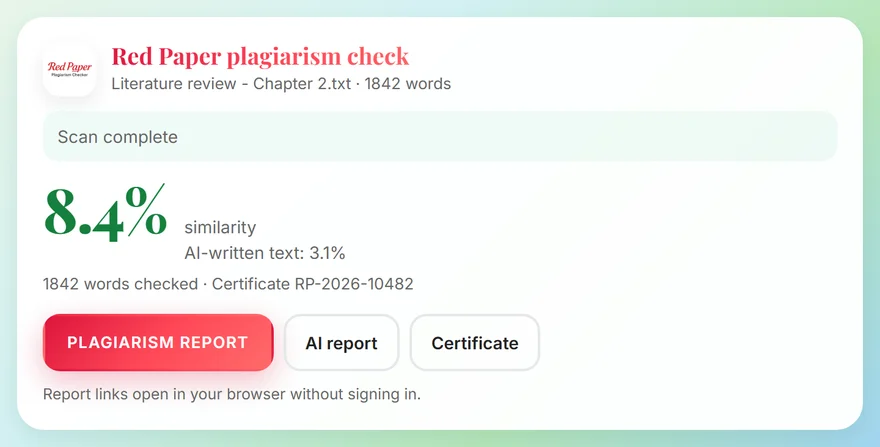
The Red Paper result card in Claude (example data).
A Red Paper card appears in the chat. The first time, Claude may ask whether to display it; choose Allow. The card refreshes on its own, so there is no need to ask "is it done yet?". Most scans finish in 1 to 5 minutes. When the card says Scan complete, it shows the similarity score and the AI-written text score.
Step 5: Open Your Reports
The finished card has a button for each result:
- Plagiarism report opens the similarity report: the overall score, the matched sources and every matching passage highlighted. Our guide on reading a similarity report explains each part.
- AI report opens the AI-content report with the flagged passages highlighted. It can arrive a few minutes after the plagiarism report; the card adds the button by itself.
- Certificate opens the certificate of originality, with both scores and a QR code anyone can scan to verify it.
The links open in your browser without signing in. Report PDFs are deleted automatically 7 days after the scan to protect your work, so download the ones you want to keep; the certificate stays available.
Seeing Your Past Reports
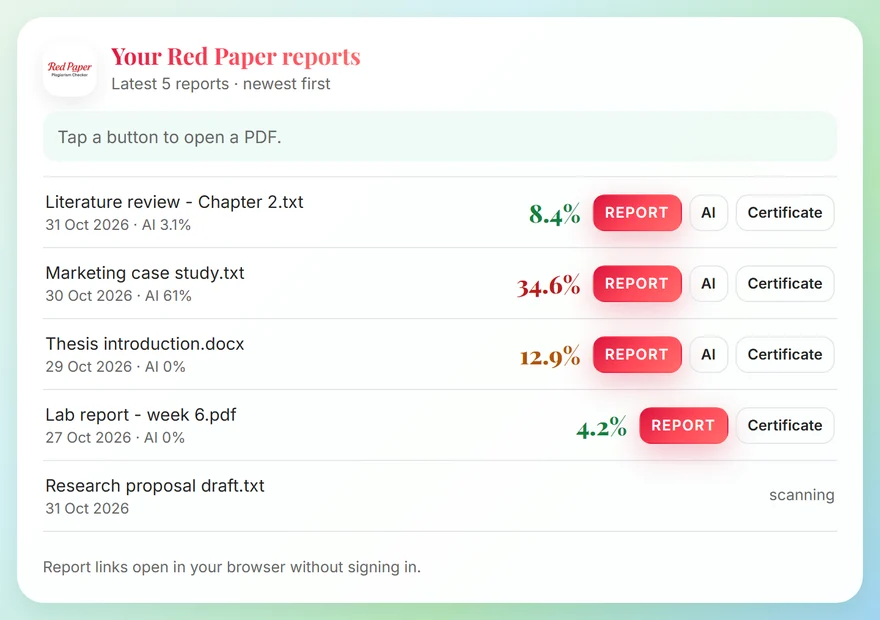
Your recent reports in Claude (example data).
Ask "Show my Red Paper reports" to see your recent checks, including those made on the website or in other apps. Each row has its score and buttons for its report, AI report and certificate.
Prompts You Can Copy
| What you want | What to type |
|---|---|
| Check your text | "Check this for plagiarism and AI-written text." |
| Check a shared document | "Check this document for plagiarism." |
| Get the AI report | "Give me the AI report for that check." |
| Get the certificate | "Send me the originality certificate." |
| See past checks | "Show my Red Paper reports." |
| Check your balance | "How many Red Paper credits do I have?" |
Tips and Troubleshooting
| Situation | What to do |
|---|---|
| Red Paper says you do not have enough credits | Nothing was submitted or charged. Add credits in your account on checkplagiarism.ai and ask again |
| The text is too short | A check needs at least 50 words |
| A scanned PDF gives no result | Scanned images and photos of text have no readable text. Use a document with selectable text |
| The card does not appear | Allow Claude to display it when asked. You can also ask "Is my scan done?" to get the result as text |
| The wrong account is connected | Disconnect Red Paper under Customize, Connectors, then connect again with the right account |
| A report link no longer works | Report PDFs are deleted after 7 days. The certificate and your scores remain in My Reports |
Privacy and Your Data
Red Paper receives only the text you ask Claude to check and the language you choose. It does not receive your Claude conversations, other files, memory or Claude account details. Checks from Claude are stored in your Red Paper account like website uploads and follow the same retention rules. Read the full privacy policy.
Frequently Asked Questions
How do I start using Red Paper in Claude?
Add Red Paper under Customize, Connectors, click Connect and sign in. Then paste your text or share your document and ask Claude to check it.
Can I check a PDF or Word file?
Yes. Share it in the chat and ask Claude to check it. Claude sends the document text to Red Paper.
Why does Claude ask for my approval before a check?
A check uses your credits, so Claude asks first. Viewing reports and your balance is free.
What happens if I do not have enough credits?
Your balance is checked first, so nothing is charged. Add credits on the website and ask again.
Where do I find my reports later?
Ask "Show my Red Paper reports" in Claude, or open My Reports on checkplagiarism.ai.
How do I disconnect Red Paper from Claude?
Disconnect it under Customize, Connectors in Claude, or open My Reports on checkplagiarism.ai, go to Settings and disconnect Claude under Connected apps.
Conclusion
Add and connect Red Paper once. After that, every check is the same: give Claude your text, approve the check, and open the reports from the card when it says Scan complete.
Need help? Write to support@checkplagiarism.ai.